Accruent Siterra 26.1 Release Notes
We're delivering this automatic upgrade to UAT environments on January 15, 2026 and to production environments on February 7, 2026.
Release notes are subject to change until the production release.
Preview new interface
SP-58643
We're gradually rolling out a new modern interface for Siterra, starting with the default Home page that displays when you sign in to Siterra. Early adopters can sign up to evaluate the new interface.
The new interface is deactivated by default. To enable the preview, contact Accruent Support with the subject line ‘Request technical preview of new Siterra UI in UAT’.
Once the preview is enabled in your system, click New Siterra in the upper-right corner to switch to the new interface. Click it again to return to Classic Siterra.
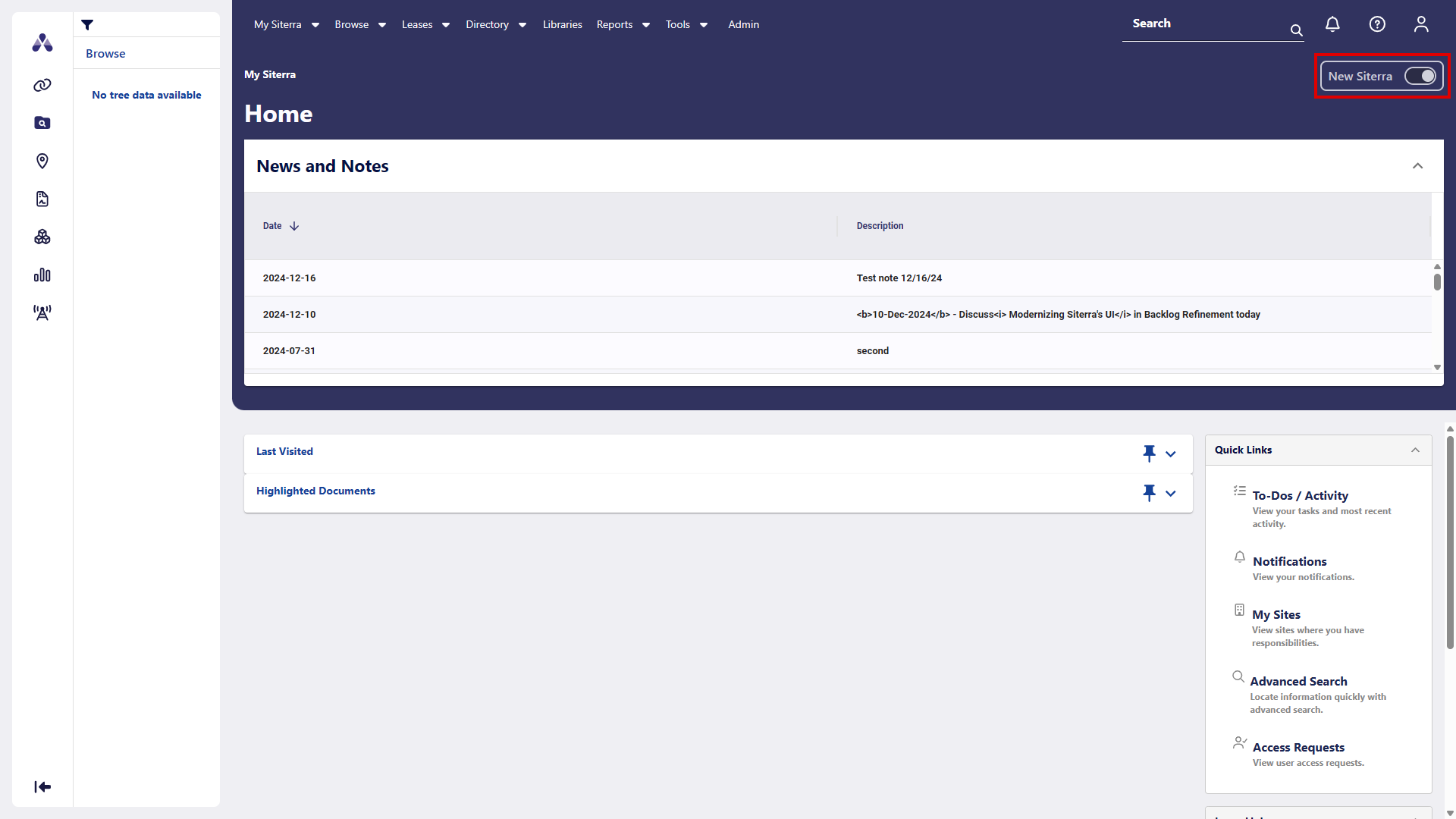
Menus and options work as before in the new interface. When you select an item where the new interface is not yet available, Siterra displays the Classic Siterra page or dialog and works as normal.
The sections that follow highlight areas you can preview in the new interface.
Navigation
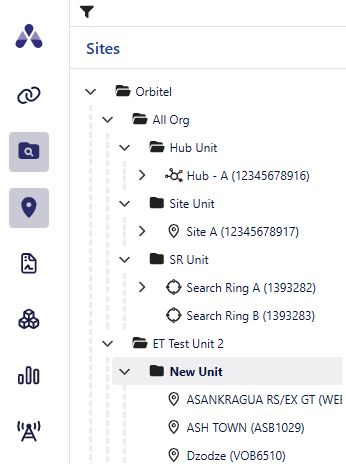
Expand and collapse the navigation tree and filter by object type.
Search
SP-56643
Search for specific entities including:
-
Sites
-
Search Rings
-
Projects
-
Incidents
-
Events
-
Assets
-
Documents
-
Leases
-
Hubs
-
Antennae
-
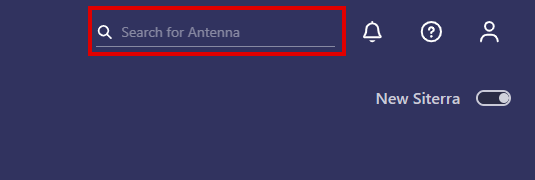
Click the magnifier icon
 in the Search box in the upper-right corner of the screen.
 -
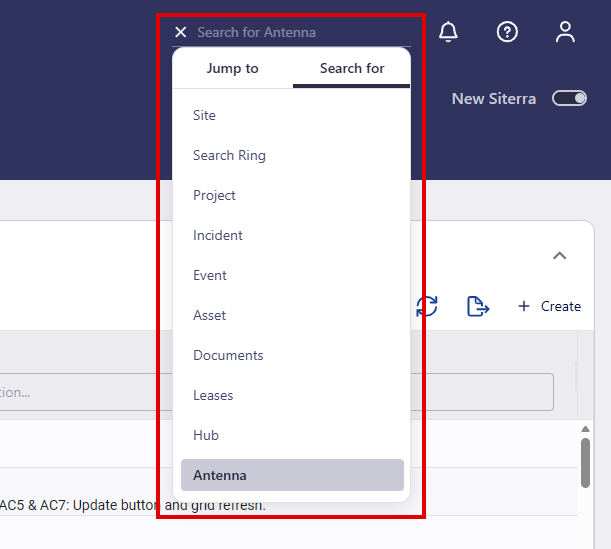
Click Search For, then select the type of object you want to search for including:
-
Site
-
Search Ring
-
Project
-
Incident
-
Event
-
Asset
-
Documents
-
Leases
-
Hub
-
Antenna
The Search for box displays the name of the object you select.
-
-
Click X, then enter the name of the item you want to search for.
-
Press Enter.
The Standard Search displays.
News and notes
View news and notes in the News and Notes pane.
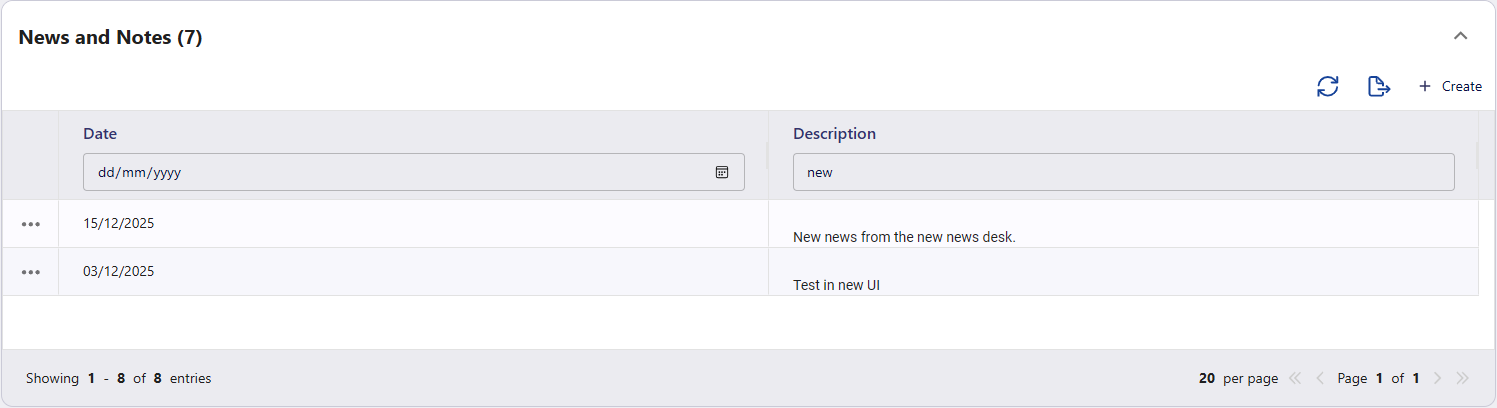
Filter the items by Date or Description and use the options available including
|
Option |
Function |
|---|---|
|
|
Refresh the displayed items. |
|
|
Export news and notes to an Excel spreadsheet. |
|
+ Create |
Create a new news and notes item. |
|
|
Select the ellipsis button ( |


 ) to
) to To dos / activity
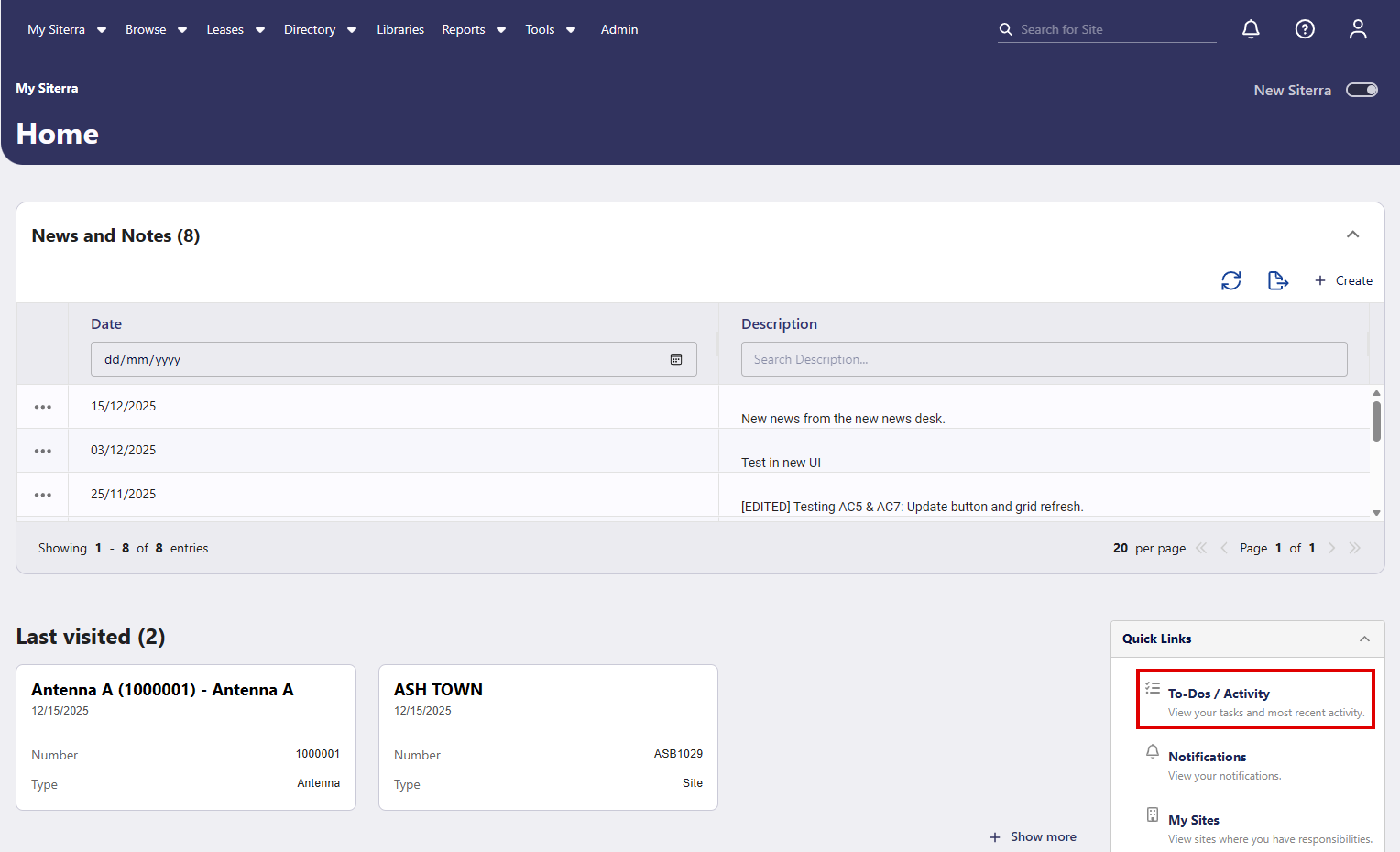
To display To Dos and Activity in New Siterra, click To-Dos / Activity on the Home page.
Context sensitive user guide
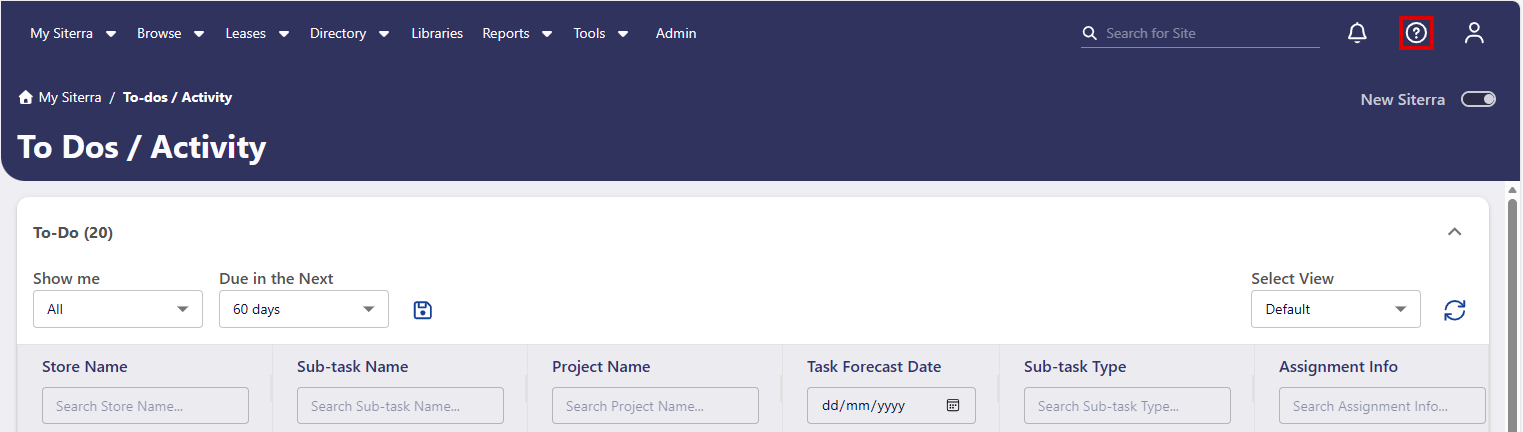
Click User Guide  on the page you're viewing to display user guide content relevant to that page. For example of you click user guides while on the To Dos / Activity page, that page opens in user guides.
Delete orphaned payment escalations
SP-58730
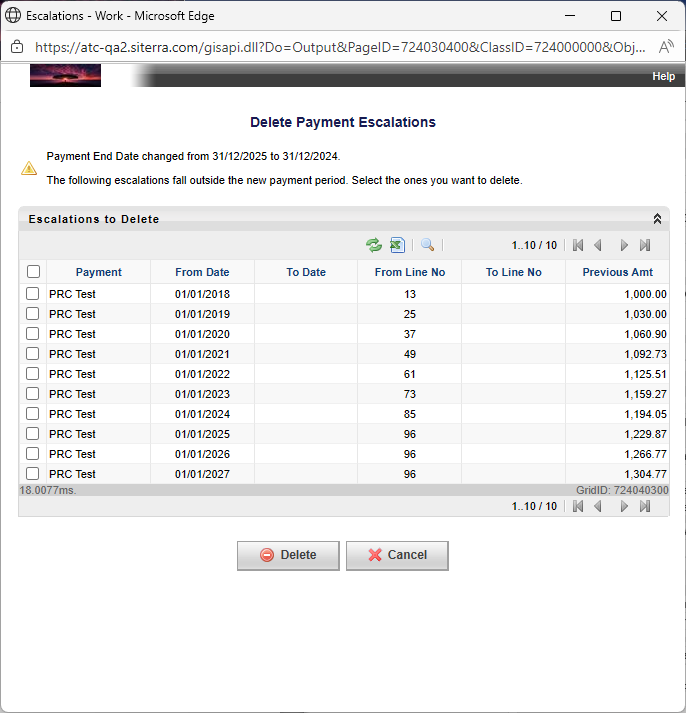
When you change the end date of a Payment Header the system helps you clean up any Payment Escalations that no longer apply, making it easier to keep your payment schedules accurate and up to date.
When you edit the end date of a Payment Header and click Save, a window lists all escalations that fall outside the new payment period.
-
Select the escalations to delete.
-
Click Delete.
-
Click OK to confirm.
The system removes the selected escalations from both the interface and the database.
Improvements and issues fixed
|
Component |
Summary |
Reference # |
|---|---|---|
|
Lease Payment Escalations |
We've improved the way escalations are processed in Lease Payments, making the system faster, and more efficient when working with large payment schedules or adding multiple escalations at once. For example, a test with a 50-year payment schedule showed the time to process escalations reduced from 45 seconds to 12 seconds. |
SP-58879 |
| Lease Payment Bulk Operation |
When you make changes to Payment Escalations, a loading indication now displays, indicating that your changes are being processed. If processing takes longer than five minutes, a message indicates that you can stay on the page or come back later. |
SP-58729 |
| Search Ring |
The correct Search Ring ID is now automatically added when new projects are created, preventing delays, and improving data accuracy for reporting. |
SP-57646 |
|
Bulk imports |
We've improved the way Siterra handles data imports to prevent SQL exception errors. The system now resets its database connection automatically during imports to prevent errors, interruptions, and make your data imports smoother and more reliable. |
SP-58818 |
| Character counter | The character counter now appears in notes fields on forms that include a form-level or section-level dependency on another field. | SP-58866 |
| Calculated EA expressions |
Calculated EA expressions with Windows-1252 and ISO-8859-1 special characters enclosed in quotes now validate and save successfully. This includes currency symbols such as € лв ₱ ﷼ ₪ ₩ ₭ ден ₮ ₦ zł ₽ ฿ ₴ ₹. Example: CONCAT("€", "1234.5"). |
SP-58094 |
| User security |
Non-admin users, including those with User Management permissions, can no longer create or modify administrator accounts. Role-Based Access Control (RBAC) is enforced across Siterra and its API. Administrator-only controls are unavailable for non-admin users. API requests to set isAdmin=true return 403 Forbidden. All attempts, whether successful or blocked, are recorded in the audit log. |
SP-58733 SP-58595 |